
What is Error Code 524 in Roblox?
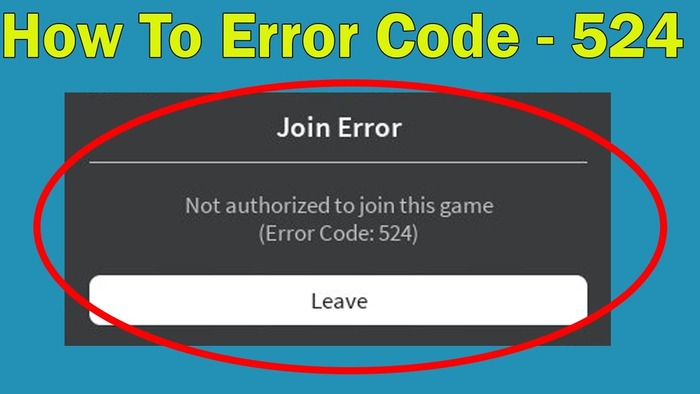
Error Code 524 in Roblox is a common error that appears when players attempt to join a game, particularly multiplayer games or VIP servers. The error message typically states, “Not authorized to join this game. (Error Code: 524)” or “You do not have permission to join this game. (Error Code: 524)”. This error can be caused by various factors, including server issues, connectivity problems, or account restrictions. In this comprehensive guide, we will explore numerous solutions to help you resolve Error Code 524 in Roblox.
Possible Reasons for the Roblox Error Code 524
Before diving into the solutions, it is essential to understand the possible reasons behind Error Code 524 in Roblox. These reasons include:
- Server issues
- Connectivity problems
- Account Restrictions
- Ad-blockers and browser extensions
- Firewall settings
Fix #1: Check if Roblox Servers are Down
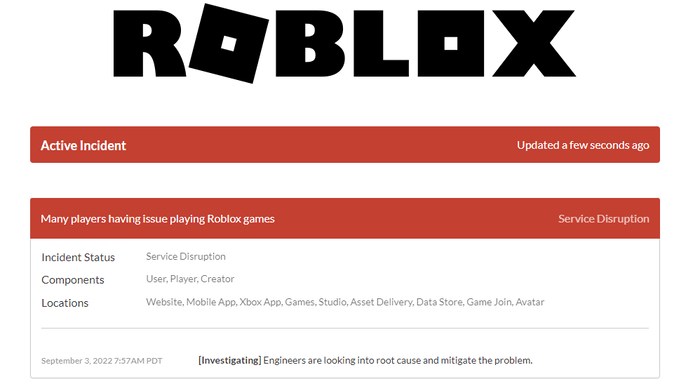
One possible cause of Error Code 524 is a server issue affecting all Roblox maps. To check the status of Roblox servers, visit the Roblox Status page at <ahref=”https://status.roblox.com/”>https://status.roblox.com/. If there is an ongoing server issue, you will have to wait until the issue is resolved by Roblox developers.
Fix #2: Change Invitation Settings
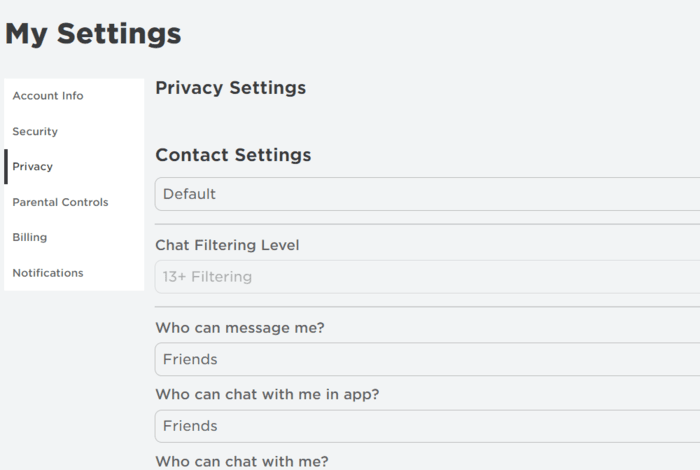
Another possible cause of Error Code 524 is that you have not been invited to join the VIP server. To resolve this issue, you can ask a friend who is already on the VIP server to invite you. Additionally, you can change your privacy settings to allow friends to invite you to VIP servers.
Here’s how to change your privacy settings:
- Log in to your Roblox account.
- Click on the gear icon in the upper-right corner to open the settings menu.
- Select “Privacy” from the left sidebar.
- Under “Who can invite me to VIP Servers?”, choose “Friends” or “Everyone”, depending on your preference.
- Click “Save” to apply the changes.
Fix #3: Begin a New Server on Any Game
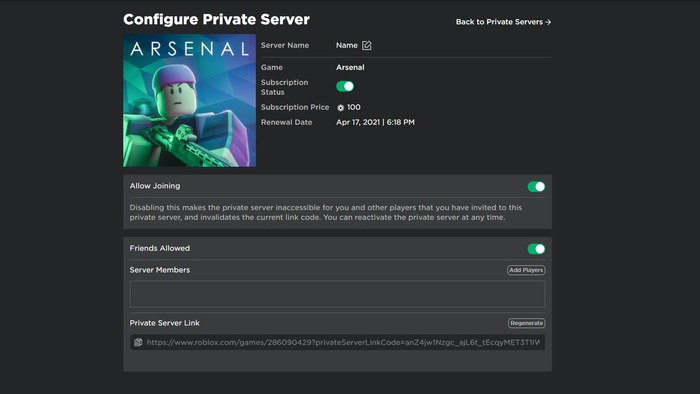
In some cases, Error Code 524 in Roblox can be resolved by starting a new server on the game you want to join. To start a new server, follow these steps:
- Open Roblox and find the game you want to play.
- Click on the game and select “Servers” from the game’s page.
- At the bottom of the server list, click “Create Private Server” (note that this may require a small fee of Robux).
- Name your private server and click “Buy Now” to create the server.
- Invite your friends to join your newly created server.
Fix #4: Disable AdBlock and Other Extensions
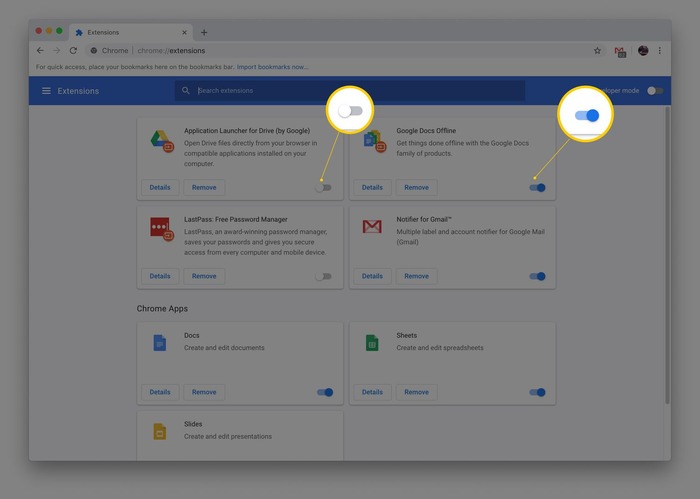
Ad-blocking and other browser extensions can sometimes interfere with Roblox, causing Error Code 524. To resolve this issue, try disabling your browser extensions, particularly ad-blockers, and see if the error persists. Here’s how to disable extensions on Google Chrome:
- Click the three-dot menu in the upper-right corner of your Chrome browser.
- Hover over “More tools” and select “Extensions.”
- Find the extension(s) that may be causing the issue and toggle the switch to “Off.”
- Restart your browser and try joining the Roblox game again.
Fix #5: Reinstall Roblox
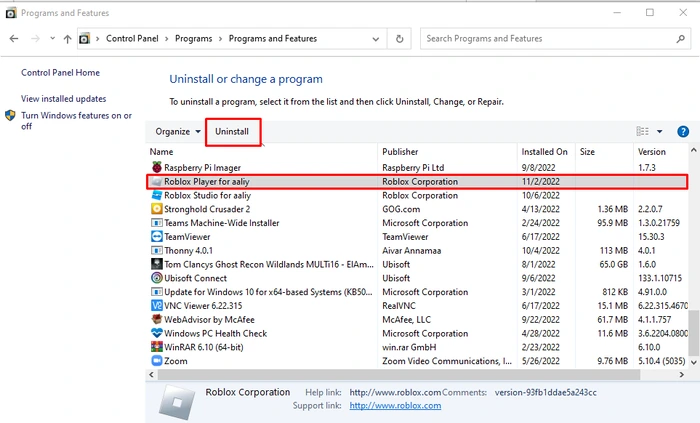
Corrupted or outdated Roblox files may also cause Error Code 524. To fix this issue, try uninstalling and reinstalling Roblox on your device. Here’s how to do it on Windows:
- Press the Windows key + R to open the Run dialog.
- Type “appwiz.cpl” and press Enter to open the Programs and Features window.
- Find Roblox in the list, right-click on it, and select “Uninstall.”
- Follow the prompts to complete the uninstallation process.
- Once Roblox is uninstalled, visit the Roblox website and download the latest version of the game.
- Install Roblox and try joining the game again.
Fix #6: Play Roblox in Your Browser
If you’re still experiencing Error Code 524, you can try playing Roblox in your web browser instead of using the desktop application. To do this, follow these steps:
- Open your preferred web browser and visit the Roblox website.
- Log in to your Roblox account.
- Find the game you want to play and click “Play” on the game’s page.
- Allow the Roblox browser plugin to run if prompted by your browser.
Conclusion
Error Code 524 in Roblox can be frustrating, especially when you’re eager to join a game. By following the solutions outlined in this article, you should be able to resolve the issue and enjoy a seamless gaming experience. Remember to check Roblox servers, change invitation settings, start a new server, disable browser extensions, reinstall Roblox, or play the game in your browser. Good luck, and may you have an enjoyable time in the world of Roblox!