

Table of Contents
- Introduction
- Power Cycling the Console
- Manual Eject with a Paperclip
- Checking for Obstructions
- Inspecting the Drive Belt
- Realigning the Tray Gears
- Updating the Xbox 360 Firmware
- Professional Repair Services
- Conclusion
1. Introduction
If you’re experiencing issues with your Xbox 360 disc tray not opening, you’ve come to the right place. In this comprehensive guide, we’ll walk you through various solutions to help you fix the problem and get back to gaming in no time. This article is designed with tech novices in mind, so don’t worry if you’re not an expert – we’ve got you covered.
2. Power Cycling the Console
Before attempting any invasive fixes, try power cycling your Xbox 360. This simple process can often resolve minor glitches and issues.
-
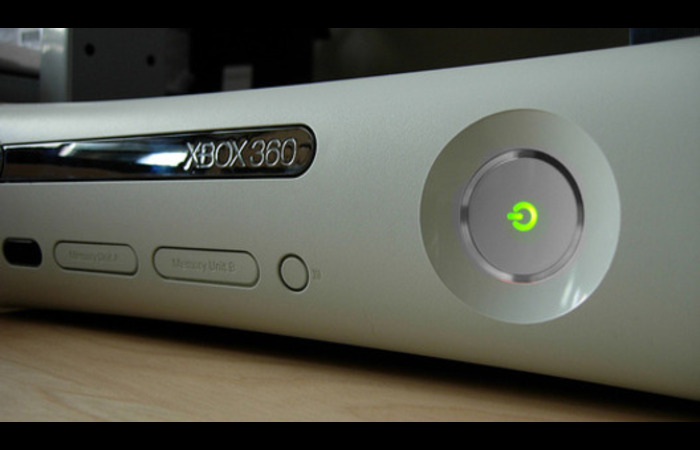
- Turn off your console by pressing the power button on the front.
-
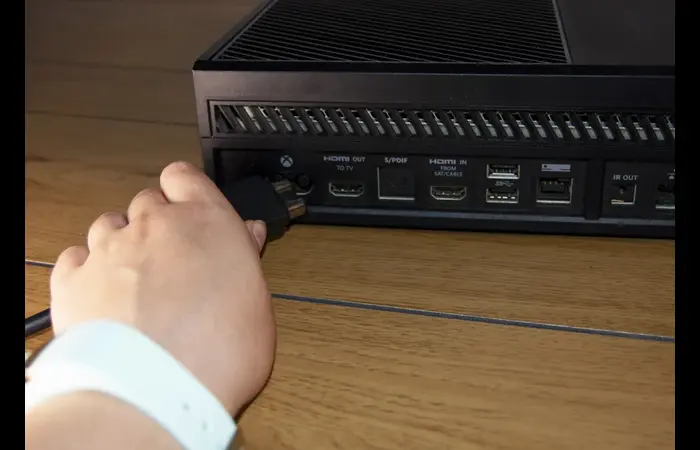
- Unplug the power cable from the back of the console.
-
- Wait for at least 30 seconds to allow any residual power to drain.
- Plug the power cable back in and turn the console back on.
If the disc tray still doesn’t open, move on to the next solution.
3. Manual Eject with a Paperclip
You can manually eject the disc tray using a paperclip if power cycling doesn’t work. This method is handy for removing stuck discs.
-
- Unplug the power cable from the back of the console.
-
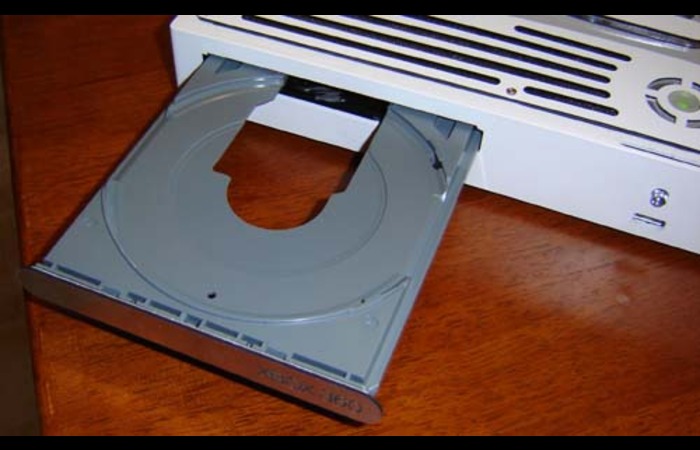
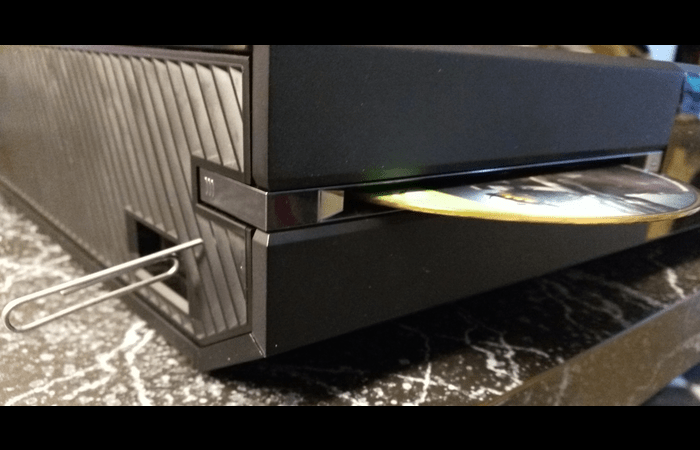
- Locate the small hole on the front of the disc tray next to the eject button.
-
- Unfold a paperclip and insert it into the hole until you feel resistance.
-
- Push the paperclip gently until the disc tray begins to open.
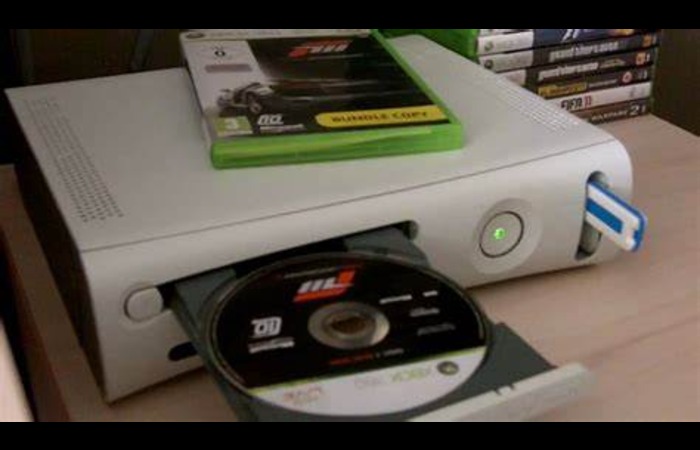
- Remove the paperclip and carefully pull the tray open the rest of the way.
If this method works, your disc tray should now be open. However, if the problem persists, proceed to the next solution.
4. Checking for Obstructions
Physical obstructions can sometimes prevent the disc tray from opening. Inspect the area around the tray for any debris or objects causing the issue.
-
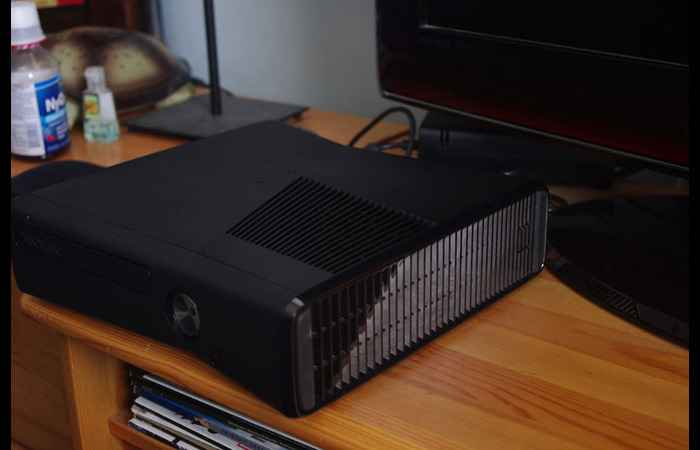
- Ensure the console is positioned on a flat, stable surface with enough clearance for the disc tray to open.
-
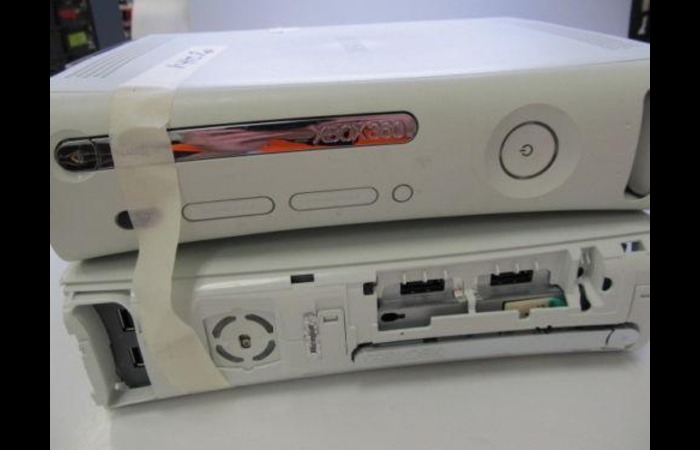
- Check the front of the console for any foreign objects or debris blocking the disc tray.
-
- Use a flashlight to inspect the inside of the tray for any obstructions or stuck discs.
-
- Remove any debris or obstructions using a pair of tweezers or a soft cloth if necessary.
If you’ve cleared any obstructions and the issue persists, continue to the next solution.
5. Inspecting the Drive Belt
A worn or damaged drive belt can prevent the disc tray from opening. To inspect the drive belt, you’ll need to disassemble the console. Remember that this may void your warranty, so proceed with caution.
-
- Unplug the power cable from the back of the console.
-
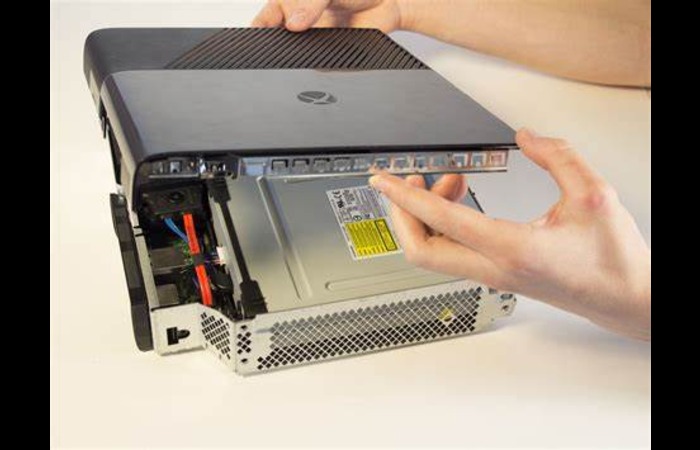
- Remove the Xbox 360’s outer casing following a detailed disassembly guide.
-
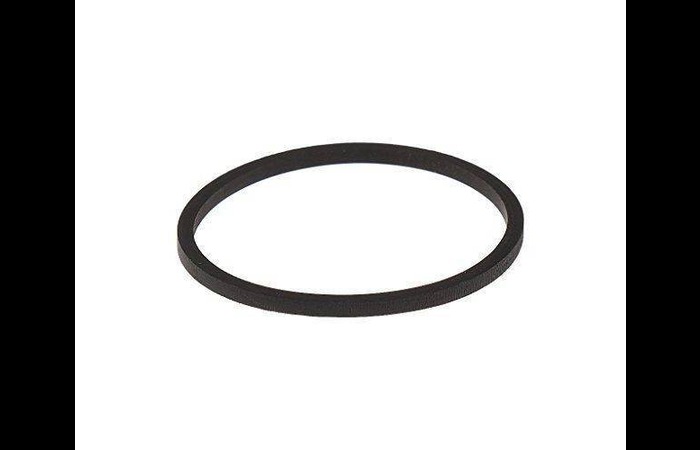
- Locate the drive belt inside the console, which connects the disc tray motor to the tray gears.
-
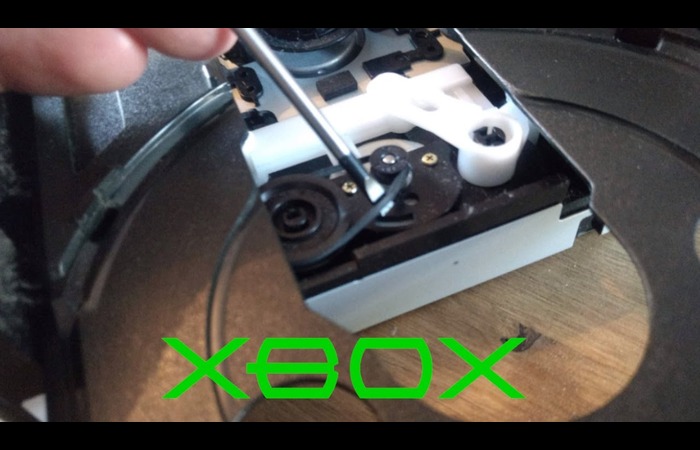
- Inspect the belt for signs of wear, damage, or looseness.
-
- If necessary, replace the belt with a new one designed for your Xbox 360 model.
- Reassemble the console and test the disc tray.
If the issue persists after replacing the drive belt, proceed to the next solution.
6. Realigning the Tray Gears
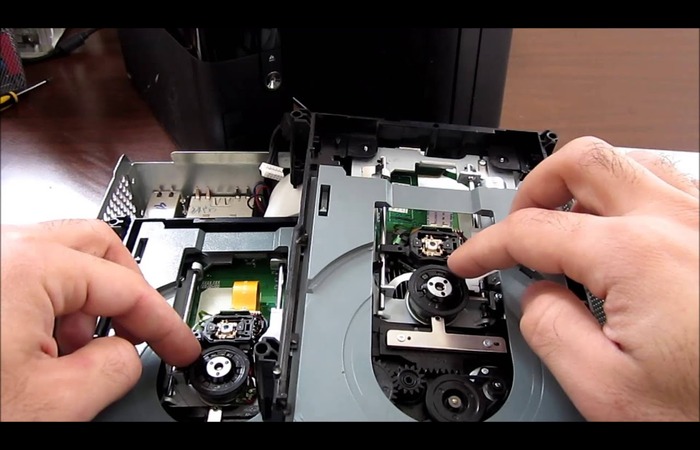
Over time, the gears that control the disc tray’s movement can become misaligned, preventing the tray from opening. You’ll need to disassemble the console and manually adjust the gears to realign the gears.
-
- Disassemble the console following a detailed disassembly guide.
-
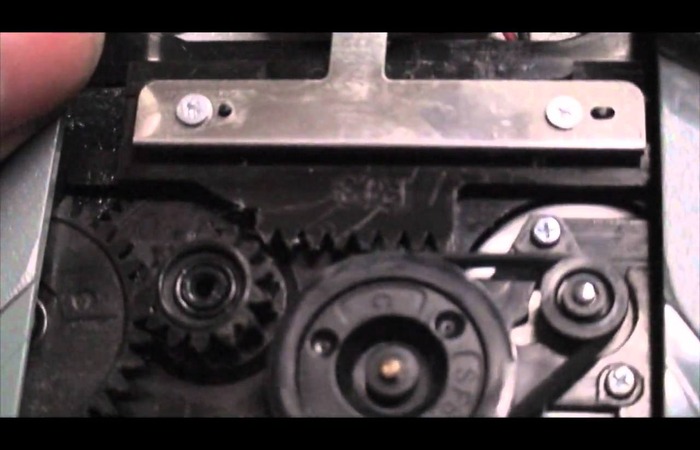
- Locate the tray gears inside the console.
-
- Inspect the bags for signs of misalignment, wear, or damage.
-
- Realign the gears by gently rotating them until they are correctly aligned.
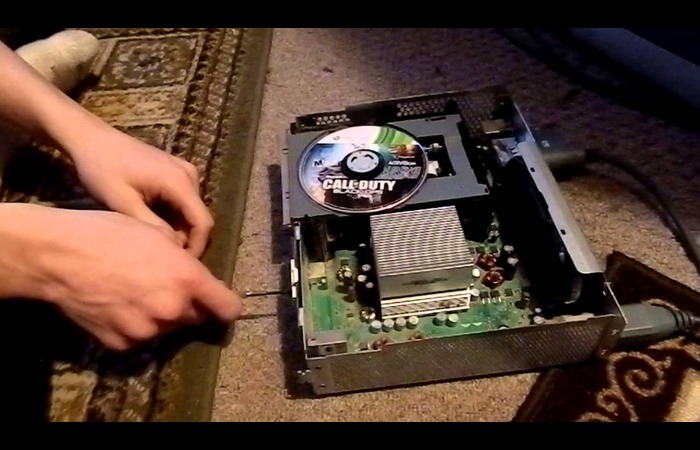
- Reassemble the console and test the disc tray.
If the tray gears were the issue, your disc tray should now open correctly. If not, continue to the next solution.
7. Updating the Xbox 360 Firmware
Outdated firmware can sometimes cause issues with the disc tray. Updating your Xbox 360’s firmware can potentially resolve the problem.
-
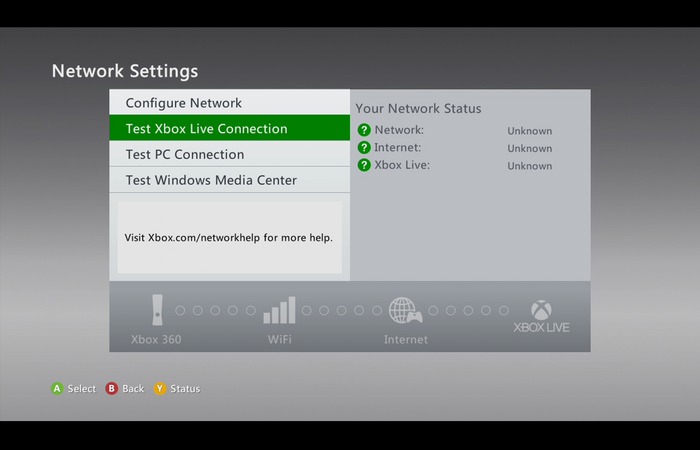
- Ensure your console is connected to the internet.
-
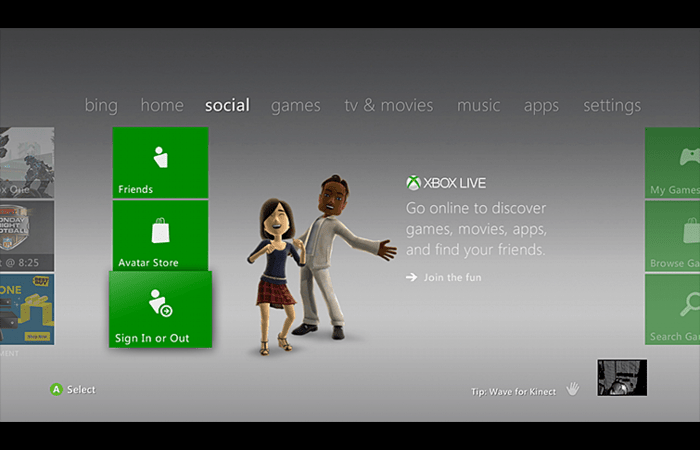
- Turn on the console and sign in to your Xbox Live account.
-
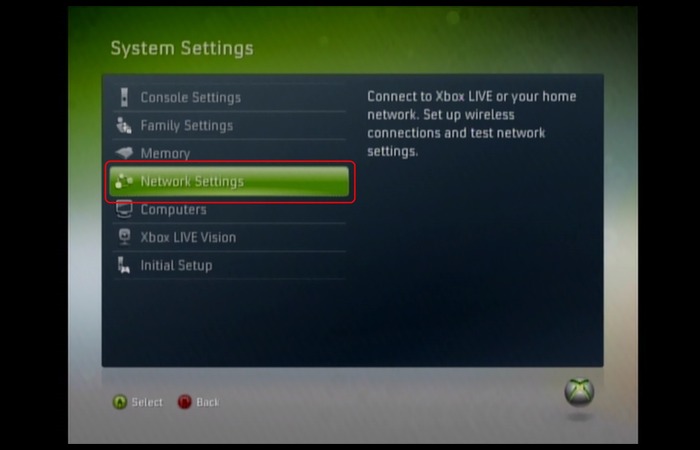
- Navigate to the “Settings” menu, then select “System” and “Console Settings.”
-
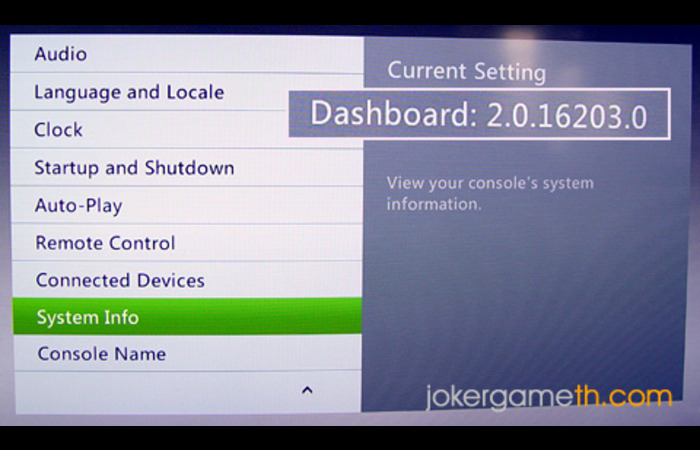
- Select “System Update” to check for any available updates.
-
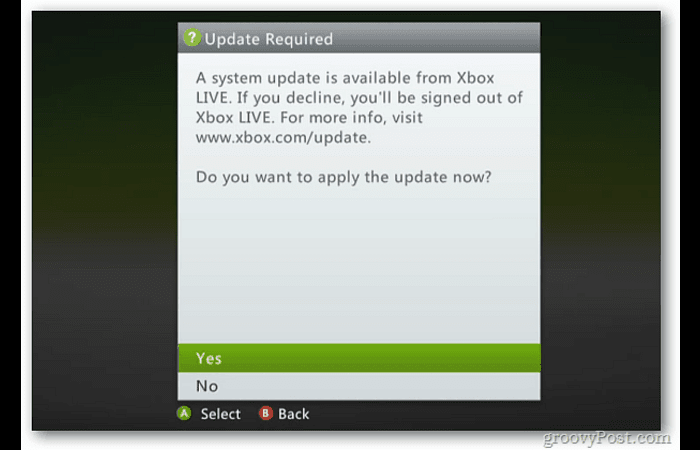
- If an update is available, follow the on-screen prompts to download and install it.
- Restart your console after the update, and test the disc tray.
If updating the firmware resolves the issue, your disc tray should open as needed. If not, you may need to consider professional repair services.
8. Professional Repair Services
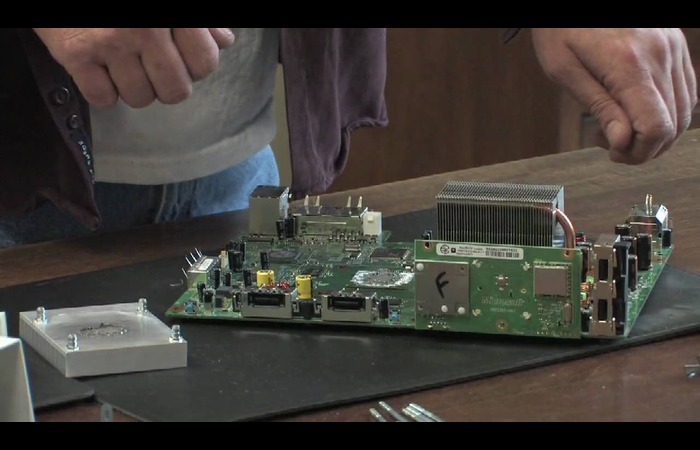
If none of the above solutions have worked, it’s time to consider professional repair services. Contact your local electronics repair shop or contact Microsoft support for assistance. Remember that repairs may come at a cost, especially if your console is no longer under warranty.
9. Conclusion
Dealing with an uncooperative Xbox 360 disc tray can be frustrating, but with this comprehensive guide, you now have the knowledge to tackle the problem head-on. Remember to approach each solution methodically and take your time to ensure the best results. If all else fails, don’t hesitate to seek professional help. With a little effort and patience, you’ll be back to enjoying your favorite games in no time.
Good luck, and here’s to hoping your Xbox 360 disc tray issue will soon be a thing of the past!